
Discord’s file size limits
At the time of writing, Discord allows uploads of up to 10 MB on a free account and 500 MB with Nitro. Nitro Basic and boosted servers sit in between. Custom server emoji, including animated ones, must be under 256 KB. Discord changes these limits from time to time, so check its help center if a number here stops working.
Simple GIF Maker has presets for Discord – 10 MB and Discord Nitro – 500 MB, and a custom size for everything else. It counts in decimal megabytes (10 MB is 10,000,000 bytes), so a file it calls 10 MB is never over a 10 MB limit, however the limit is counted.
Why your GIF is over the limit
A GIF’s size is roughly pixels per frame × number of frames × how much changes between frames. A 1080p, 30 fps, 8-second clip is 240 full-HD frames, which is far more than 10 MB of GIF. To get under, something has to give:
| Lever | What it saves | What it costs |
|---|---|---|
| Length | Directly proportional: half the length, about half the size | Content |
| Width | Halving the width cuts pixels to a quarter | Detail, readable text |
| Frame rate | 30 → 15 fps halves the frames | Smoothness |
| Colors | Fewer colors compress better | Banding in gradients |
| Dithering | Less dithering noise compresses better | Smooth gradients |
The order matters. Trim first, because nobody misses dead time. Then usually width, then frame rate, then colors. Our guide to reducing GIF size goes through each lever in detail.
The manual way
With most tools you guess: export, check the size, lower something, export again. Three or four rounds is normal, and you can easily overshoot to a file far smaller and uglier than it needed to be.
The automatic way
- Open your clip in Simple GIF Maker and trim it to the moment.
- Choose Discord – 10 MB from the File size dropdown.
- Lock what you care about. Tick Keep resolution, Keep fps or Keep colors if one of them matters most. The search works around the rest.
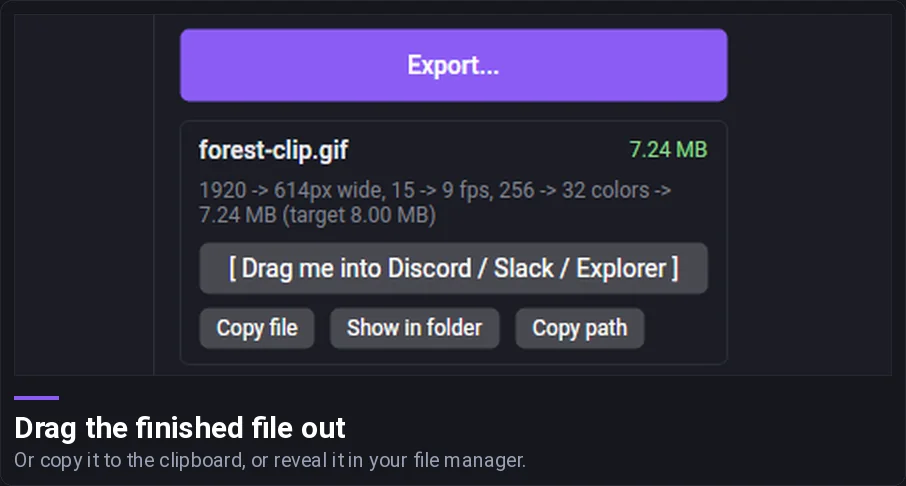
- Export. The app encodes and measures real files while it searches, then saves the best-looking one under the limit and tells you what it traded:
1920 → 614px wide, 15 → 9 fps, 256 → 32 colors → 7.24 MB (target 8.00 MB)
Getting a ten-second clip under 10 MB takes about twenty seconds on an eight-core desktop. If your settings already fit, it says No compromises needed and exports in a second or two.
Animated emoji under 256 KB
Emoji are tiny on screen, so you can be aggressive:
- Crop square with the 1:1 crop preset, tight around the subject.
- Resize to 128×128 by typing the dimensions.
- Keep it to a second or two, ideally something that loops cleanly.
- Set a custom target of 0.25 MB. That’s 250,000 bytes, safely under 256 KB.
Frequently asked questions
What is Discord's GIF size limit?
GIFs follow the normal upload limit: 10 MB on a free account at the time of writing, and 500 MB with Nitro. Custom emoji must be under 256 KB.
How do I make a GIF smaller for Discord without it looking bad?
Trim first, then reduce the width, then the frame rate, and only then the colors. Or set a 10 MB target in Simple GIF Maker and let it search for the best-looking combination that fits.
Can I post a GIF bigger than 10 MB?
With Nitro, or in a boosted server, the limit is higher. Simple GIF Maker’s Discord Nitro – 500 MB preset and custom sizes cover those.