
What’s inside a MOV file
MOV is Apple’s QuickTime container. Three things about iPhone and Mac MOVs trip up a lot of converters:
- HEVC video. With the iPhone camera set to High Efficiency, video is recorded in HEVC (H.265) rather than H.264. Plenty of Windows tools can’t read it without an extra codec. Simple GIF Maker decodes it with its bundled FFmpeg.
- Rotation. Portrait videos are often stored sideways with a note saying “rotate this”. Tools that ignore the note give you a sideways GIF. Simple GIF Maker reads it and exports the right way up.
- Variable frame rate. Phones change their frame rate on the fly to save power and cope with low light. Simple GIF Maker handles variable-framerate sources, so the GIF plays at the right speed.
ProRes MOVs from cameras and editing software decode too.
How to turn an iPhone video into a GIF
- Get the original file onto your PC. Copy it over a USB cable, iCloud, or any cloud drive you already use. Sending a video through a chat app often re-compresses it, so copy the original if you can.
- Open it. Drag the
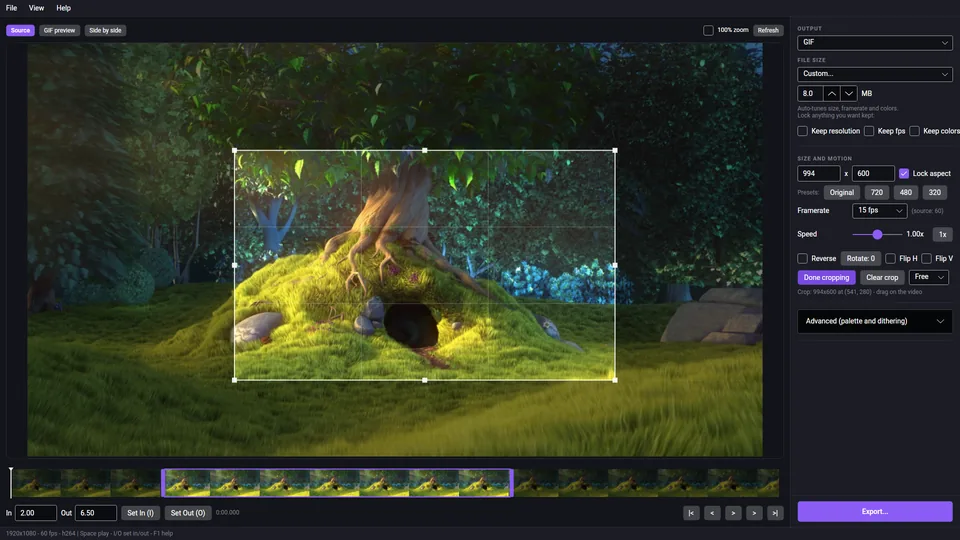
.movonto Simple GIF Maker, or press Ctrl+O. - Trim. Phone clips usually have dead time at both ends. Mark the part you want with I and O, or drag the timeline handles.
- Crop for where it’s going. A tall portrait GIF takes over a chat window. The 1:1 crop preset makes a square that sits nicely in most apps.
- Set a size and export. Choose a preset like Discord – 10 MB, check the GIF preview, and press Ctrl+E.
Making GIFs from Mac screen recordings
Screen recordings behave very differently from camera footage, and a few settings make a big difference:
- Lower the frame rate. Interfaces change in steps, not smooth motion. 10–12 fps usually looks identical to 30 and makes a much smaller file.
- Crop before you shrink. Text turns to mush when scaled down. Crop to the window or panel that matters first, then reduce size only as far as the text stays readable. Use 100% zoom in the preview to check.
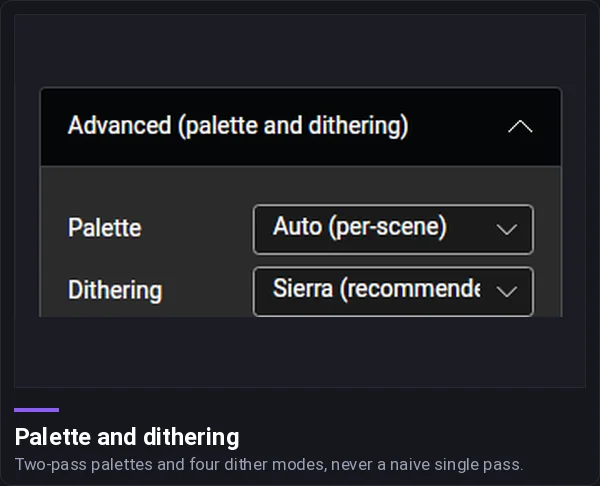
- Try a single palette and less dithering. Flat UI colors don’t need dithering, and turning it off keeps edges crisp. A single palette for the whole clip is often smaller too. Keep dithering on if there are gradients or photos on screen.
Frequently asked questions
Can it open iPhone "High Efficiency" (HEVC) videos?
Yes. HEVC, H.264 and ProRes MOV files all decode with the bundled FFmpeg. You don’t need to install the HEVC extension on Windows.
Why do other tools turn my portrait video sideways?
iPhones often store portrait video sideways with a rotation flag. Tools that ignore the flag export it sideways. Simple GIF Maker applies the rotation, and you can rotate in 90-degree steps or flip the clip yourself if needed.
Is there a Mac version of Simple GIF Maker?
No. It runs on Windows 10/11 and Linux, including SteamOS. It opens MOV files made on a Mac or iPhone without any trouble.
Should I export GIF or animated WebP for a screen recording?
GIF if it’s going somewhere that only takes GIFs, like a lot of documentation tools and chat apps. Animated WebP is far smaller and full color, so use it where it’s supported. See GIF vs WebP.