

Add a caption in six steps
- Open the clip or the GIF. Drag it onto the Simple GIF Maker window, or press Ctrl+O. Videos and existing GIFs both work.
- Trim it to the moment. Drag the in and out handles on the timeline, or press I and O at the playhead.
- Open Text and captions and click Add caption. Type into the box. The GIF preview updates with your text.
- Choose a Position: Bottom (where a new caption starts), Top, Middle, or Custom (drag on GIF preview), which puts a marker on the preview that you can drag anywhere.
- Style it. Pick a font, then set the Size, the Text color, the Outline color and width, Shadow and ALL CAPS.
- Add the second line with Add caption again, check the GIF preview, and export.
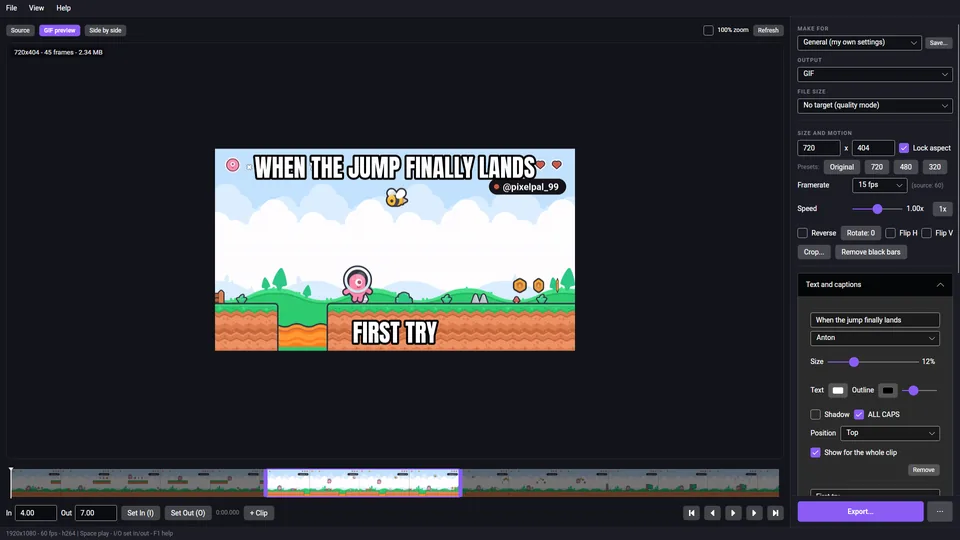
The classic meme look
White text, a thick black outline, all capitals, one line at the top and one at the bottom. New captions start out white with a black outline in the bundled meme font, Anton, a condensed face in the style of Impact; tick ALL CAPS and you have it. On Windows, if Impact itself is installed, it appears in the font list too.
Long lines shrink to fit the width of the GIF instead of running off the edge, so you don’t have to resize text by hand when you change the output size.
Text above the video, not on it
The other common meme format puts the caption on a plain bar above the picture. Drag the Bar above or Bar below slider in the same section, pick a Bar color, and the app adds that much solid space to the canvas, so the text never covers the video. Black text with no outline on a white bar gives the familiar look.
Show a caption for only part of the clip
Every caption shows for the whole clip until you untick Show for the whole clip. Then move the playhead and use From playhead and To playhead to set when it appears and disappears. Use it for a punchline on the last second, or a different line for each half of the clip.
Fonts
| Font | Style | Good for |
|---|---|---|
| Anton | Condensed, heavy | Classic meme captions |
| Fira Sans Extra Condensed | Condensed, black weight, wide language support | Long captions, Cyrillic |
| Roboto | Clean sans serif | Labels and tutorials |
| Russo One | Bold, blocky | Gaming clips |
| Press Start 2P | 8-bit pixel | Retro and pixel-art games |
| Lobster | Script | Greetings, titles |
| Pacifico | Brush | Casual, friendly captions |
| Amatic SC | Hand-lettered | Notes, doodle style |
| Noto Sans CJK | Sans serif | Chinese, Japanese and Korean |
Have a font you like better? Choose Custom font file… at the bottom of the list and pick any .ttf or .otf file.
Captions in other languages
Not every font has every alphabet. Anton has no Cyrillic, and none of the decorative fonts have Chinese, Japanese or Korean characters. Instead of drawing empty boxes, Simple GIF Maker checks whether the chosen font can draw your text, and if it can’t, it uses a bundled font that can. A Russian caption in the meme font comes out in the condensed font; a Japanese one comes out in Noto Sans CJK.
Why the text stays sharp
Captions are drawn after the clip has been resized, at the GIF’s final size. A caption on a 480 px GIF is drawn at 480 px, not drawn large and then shrunk, so the edges stay crisp. Text with a hard outline costs a little file size, and if you’ve set a size target, the search accounts for it, because it measures real encodes with the captions in them.
From the command line
The same captions can be scripted. Each --text starts a caption, and the options after it style that caption:
SimpleGifMaker --export cat.mp4 cat.gif --width 480 --bar-top 0.22 --bar-color FFFFFF \
    --text "when the build passes" --text-pos top --text-color 000000 --text-outline 0 \
    --text "on the first try" --text-pos bottom --text-upper
Frequently asked questions
Can I add text to a GIF I already have?
Yes. Open the GIF in Simple GIF Maker, add captions and export. It rebuilds the GIF with a fresh palette, so you can also make it smaller at the same time.
Is there an Impact font?
The app bundles Anton, a free font in the same condensed, heavy style. On Windows, if Impact is installed on your PC, it appears in the font list as well.
Can I use my own font?
Yes. Choose Custom font file… in the font list and pick a .ttf or .otf file.
Can the text move or animate?
No. Each caption stays where you put it. What you can control is when it shows: for the whole clip, or between two points you set with the playhead.
Can I write captions in Chinese, Japanese, Korean or Russian?
Yes. If the chosen font can't draw your text, the app uses a bundled font that can, including Noto Sans CJK for Chinese, Japanese and Korean.
Will the GIF have a watermark?
No. The only text on your GIF is the text you add.