
Three ways to start
- Drop a folder of images onto the window.
- Drop several image files at once.
- Use File › Open images…, or Images to GIF… on the empty window.
PNG, JPG, WebP, BMP and TIFF all work, and transparent PNGs stay transparent. A folder is read in natural name order, so frame_2.png comes before frame_10.png, the way you’d expect.
Set the order and the timing
Each way opens the Images to animation window, where every image is a row with a thumbnail:
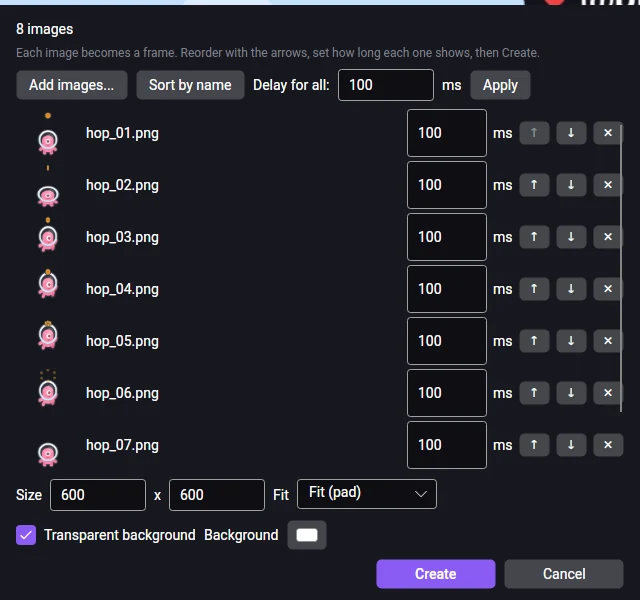
- Put them in order. Move images up and down with the arrows, or click Sort by name. Add images… appends more.
- Set how long each one shows. Type a delay in milliseconds next to any image, or set Delay for all and click Apply. The default is 100 ms, ten images per second.
- Choose the size. It starts at the first image’s size.
- Pick how other sizes fit: Fit (pad) shows the whole image with a border, Fill (crop) fills the frame and trims the edges, Stretch distorts it to fit. The border can be a Background color or a Transparent background.
- Click Create.
The images then open in the editor like a video, so everything else works on them: trimming, cropping, captions, loops, Make for presets and size targets. Keep each image’s own delay in the settings keeps the timing you set; untick it to play the images at a regular frame rate instead.
Choosing the output
| Output | Best for | Transparency |
|---|---|---|
| GIF | Anywhere it has to work: chat, forums, docs, email | On or off per pixel |
| Animated WebP | Websites and apps that accept it: full color, much smaller | Smooth |
| APNG | Stickers, and pixel art; Full color keeps every color instead of a 256-color palette | On or off, or smooth with Full color |
A note on very short delays
GIF stores each frame’s delay in hundredths of a second, so 25 ms becomes 20 or 30. Browsers also slow down frames shorter than 20 ms to a tenth of a second, which makes a too-fast GIF play slower. Keep GIF delays at 20 ms or more, or export animated WebP or APNG for faster animation.
And back again
Need the frames of an animation as images? Open the GIF, video or animated WebP and choose Export every frame as PNG (.zip)… from the export menu. Save this frame as PNG… saves just the current one.
From the command line
A folder works as an input anywhere a video does:
SimpleGifMaker --export ./frames/ anim.gif --image-delay 80
SimpleGifMaker --export ./frames/ anim.png --format apng --image-fit fit
Frequently asked questions
Can each image have a different delay?
Yes. Set a delay per image in the Images to animation window, from 10 ms up to a minute. The delays are kept when you export.
Do transparent PNG frames stay transparent?
Yes. Transparency is kept in GIF (fully on or off per pixel), animated WebP and APNG. For GIF, Clean edges for blends soft edges onto the color the animation will sit on. More on transparency.
What if my images are different sizes?
They're fitted to one size, the first image's unless you change it: padded, cropped or stretched, as you choose.
Can it cut up a sprite sheet?
No. It needs each frame as its own image file.
Can I make the animation smaller?
Yes. Set a size target or pick a Make for preset, and the app searches for the best-looking settings that fit, the same as it does for video.