
Where the transparency comes from
A transparent GIF needs to know which pixels are background. Simple GIF Maker gets that one of two ways:
- The source already has it. VP9 WebM with an alpha channel, ProRes 4444 MOV, transparent GIF, APNG and animated WebP, and PNG images all carry transparency, and it’s kept automatically (Keep transparency in the Transparency section).
- You remove a color. A green screen, a blue screen, or any flat background color can be keyed out.
Ordinary MP4 video, from a phone or a game capture, has no alpha channel, so for those removing a color is the way. There’s no automatic background removal: if the background isn’t a flat color, the app can’t cut the subject out for you.
Remove a green screen in five steps
- Open the clip and trim it.
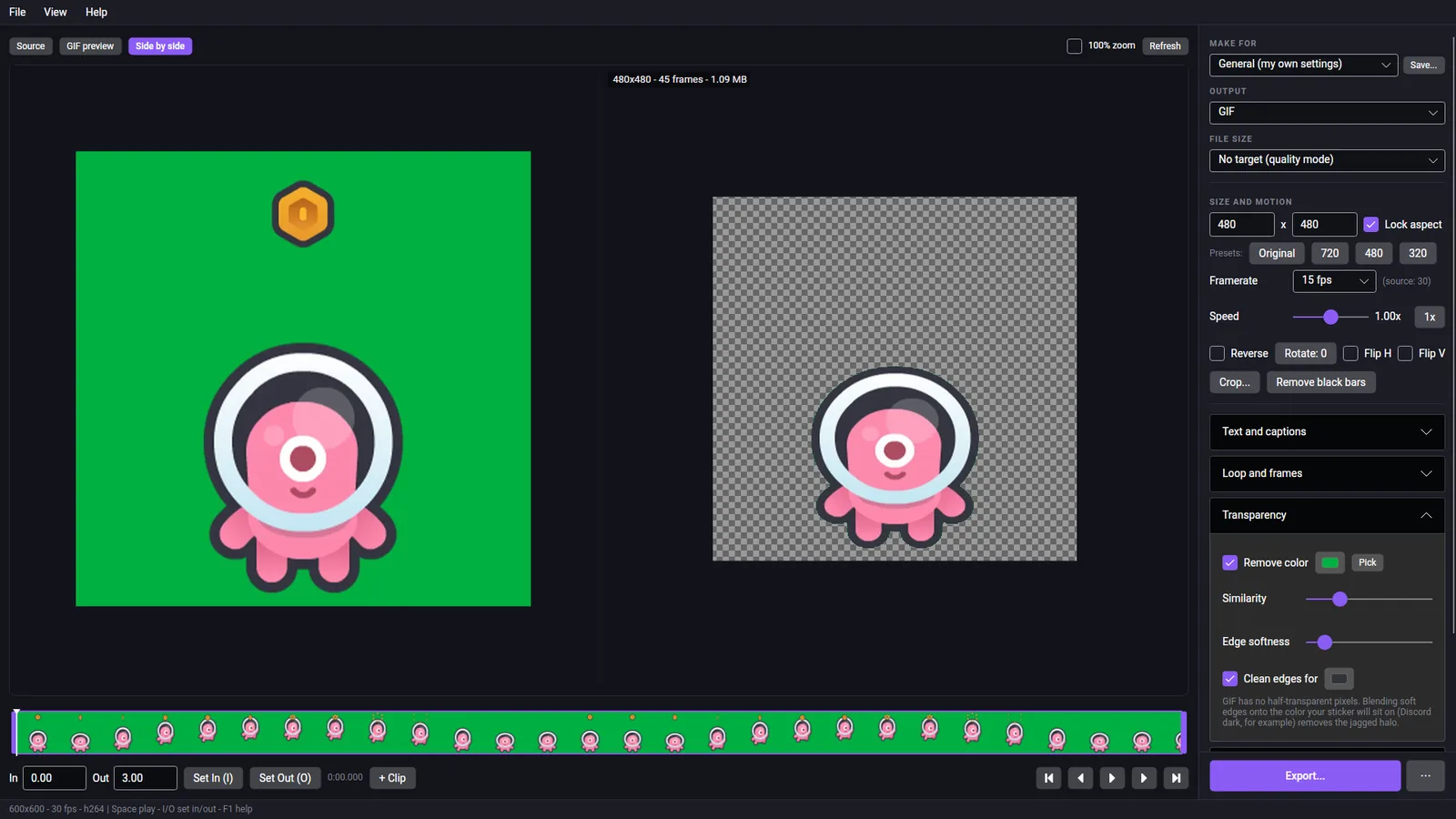
- Open Transparency and tick Remove color. It starts on a standard green-screen green.
- Click Pick, then click the background on the Source view to use its exact color.
- Adjust Similarity until the whole background disappears without eating into the subject, and Edge softness to smooth the cut.
- Check the GIF preview. Transparent areas show as a checkerboard.
Why transparent GIFs get jagged edges
GIF has no half-transparent pixels. Each pixel is either fully see-through or fully solid. Real footage, and good keying, has soft edges: hair, motion blur, anti-aliased outlines. When those soft pixels are forced to on or off, you get a staircase edge, and often a fringe of the old background color.
Clean edges for fixes this by blending each soft edge pixel onto the color the GIF will be shown on, then making the rest transparent. Tick it and set its color to wherever the GIF is going: Discord dark (the default), Discord light, Slack dark, Twitch dark, white, black, or any color you like. On that background the edge looks smooth. On a very different background you may see a faint rim of the chosen color, so choose the one your audience mostly uses.
Which format keeps soft edges
| Format | Transparency | Soft edges |
|---|---|---|
| GIF | On or off per pixel | Use Clean edges for |
| APNG (default, 256 colors) | On or off per pixel | Use Clean edges for |
| APNG with Full color (smooth transparent edges) | Smooth, 8-bit | Kept as they are; larger files |
| Animated WebP | Smooth, 8-bit | Kept as they are |
About the preview: the preview pane always encodes a GIF, with GIF’s hard edges. A full-color APNG or animated WebP export looks smoother than its preview.
Square stickers from non-square art
Sticker and emote presets want a square. For video, the app centres a square crop you can drag. For a transparent character that isn’t square, it fits the whole thing inside the square and pads the rest with transparency, so nothing is cut off. You can choose it yourself with Fit inside (pad, don’t stretch), which appears under Size and motion whenever the width and height you set don’t match the picture’s shape.
From the command line
# Green screen to a transparent animated WebP
SimpleGifMaker --export greenscreen.mp4 out.webp --format webp --key 00B140 --key-similarity 0.2

# Transparent GIF with edges blended for Discord's dark theme
SimpleGifMaker --export greenscreen.mp4 out.gif --key 00B140 --matte 313338
Frequently asked questions
Can it remove a background automatically?
No. Transparency comes from the source, or from removing a single color such as a green screen. There's no AI background removal.
Can I make a transparent GIF from an MP4?
Only if the background is a flat color you can remove, like a green screen. Ordinary MP4 video has no transparency of its own.
Why does my transparent GIF have a white or green outline?
Those are soft edge pixels that GIF had to make fully solid. Use Clean edges for with the color your GIF will sit on, raise Similarity a little to remove more of the old background, or export full-color APNG or animated WebP, which keep soft edges.
Does re-encoding a transparent GIF keep it transparent?
Yes. Open the GIF, change what you like, and export: the transparency is kept.
Can I fill the transparency in instead?
Yes. Untick Keep transparency and transparent areas are filled with a solid color.