



emote.gif, emote_56.gif and emote_28.gif, 45 frames each: 109 KB, 34.4 KB and 10.5 KB.Twitch’s rules for animated emotes
At the time of writing (November 2026), Twitch accepts animated emotes as square GIFs of 60 frames or fewer, uploaded one of two ways:
- One image, 112×112 or larger, up to 1 MB. Twitch makes the smaller sizes itself.
- All three sizes by hand: 112, 56 and 28 px, each up to 512 KB.
Uploading the three sizes yourself lets you check each one before it goes live. The Twitch emote preset makes all three, so you can use either route.
Make the emote in five steps
- Open the clip and trim it to the reaction: one to three seconds is plenty.
- Choose Twitch emote under Make for. The line under it lists what the preset keeps to: 112 px, up to 1 MB, up to 60 frames, and the extra 56 and 28 px sizes.
- Drag the square crop over the face. At 28 px, the face is the emote.
- Check the frame count. Loop and frames shows About N frames. The preset sets Max frames to 60, which lowers the frame rate only when it has to: at 30 fps, a three-second selection drops to about 20 fps.
- Export to
emote.gif. You getemote.gif(112 px, under 1 MB),emote_56.gifandemote_28.gif(each under 512 KB) in the same folder.
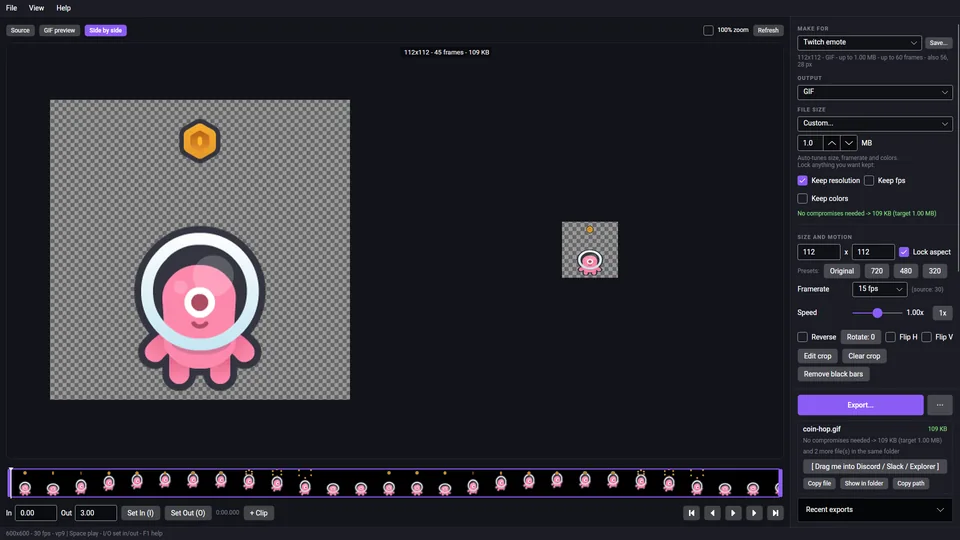
Uploading all three by hand? Then the 112 px file must be under 512 KB too. After choosing the preset, change the custom file size from 1.0 to 0.5 MB before you export.
Making an emote that reads at 28 px
- Crop tight. A face filling the square reads at 28 px; a whole scene doesn’t.
- Keep the motion big and simple: a nod, a jump, a flash. Fine detail disappears at emote size.
- Leave text out, or keep it to one short, bold word. Captions are in Text and captions if you need one.
- Loop it. Boomerang (forward, then back) or Seamless loop (crossfade) hides the jump back to the start. Remember both add frames, so check the count.
A transparent background
Emotes sit on chat, so a transparent background looks better than a box. If your source has transparency it’s kept. If it’s a green screen, tick Remove color in Transparency, click Pick, and click the green on the Source view. Then set Clean edges for to Twitch dark so the edges blend into Twitch’s dark chat instead of showing a jagged halo. More on transparency →
7TV and BetterTTV
| Preset | Format | Size | Limits |
|---|---|---|---|
| 7TV emote | Animated WebP | 128 px tall | Up to 7 MB, up to 1000 frames |
| BetterTTV emote | GIF | 112×112 | Up to 1 MB |
7TV shows emotes 32 px tall, so 128 px covers it up to four times over. Its emotes don’t have to be square, which makes it a good home for wide reactions.
From the command line
SimpleGifMaker --export reaction.mp4 emote.gif --preset twitch-emote --end 3
#   -> emote.gif, emote_56.gif, emote_28.gif
Frequently asked questions
Why does Twitch reject my animated emote?
Usually one of three things: more than 60 frames, a file over the size limit (1 MB for a single upload, 512 KB each for the three sizes), or an image that isn't square. The Twitch emote preset keeps to all three.
How many frames can a Twitch emote have?
60. The preset caps the frame count at 60 by lowering the frame rate when needed, so a two-second emote can play at up to 30 fps and a three-second one at about 20.
Can I make a still emote too?
Yes. Choose Save this frame as PNG… from the export menu to save the current frame at the output size.
Can I make an emote from a GIF?
Yes. Open the GIF, choose the preset and export. Transparency in the GIF is kept.